| |||
|
| |||
|
Even though all smartphones support USB, communicating over USB is not a simple task. We have however implemented the USB interface for Android, using the Android Debug Bridge. The USB protocol was designed to work with the Android USB tracker plugin of FaceTrackNoIR.
You can test the USB communication, even when you have not yet upgraded the App.
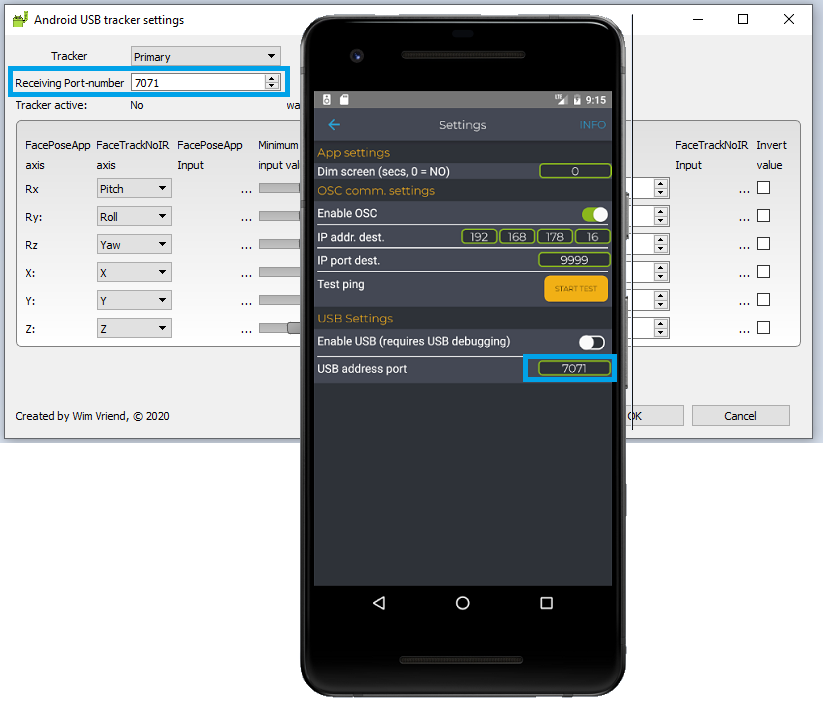
To use USB communication, you must:
If you have FaceTrackNoIR already, you can test communication by selecting the Android USB tracker plugin. After pressing START, you can open the USB tracker settings page to see if data arrives.
We have created a small Windows utility that can be used to test USB communication. You can also see the status of your Android device, to see if it is capable of communicating via USB:
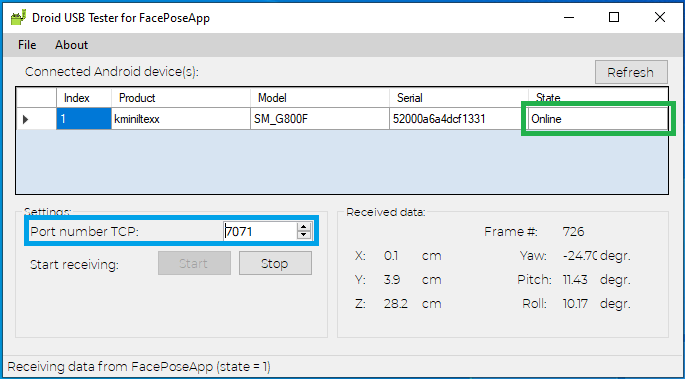
The DUT4FPA test tool (installer, also includes the FaceTrackNoIR plugin) can be downloaded here.
Remark: Click the link to download the installer. Since it is an EXE file, your browser will probably warn you. You can also right-click the picture and choose "Save target As..." and let your virusscanner do its thing.
|
|